At Wallpezia, we often hear from users who are frustrated with their graphics. The story is usually the same: you download an image that claims to be transparent, but when you drop it into your presentation or website, there is an ugly white box around it. Or perhaps you’ve noticed that your website is loading slowly because a single logo file is inexplicably large.
We understand these challenges because we deal with thousands of digital assets every day. Navigating file formats can be confusing, especially when you just want your design to look clean and professional.
This guide shares practical advice on how to handle PNG images correctly, avoiding the common pitfalls we see daily.
The Common Frustrations
Before we discuss solutions, let's look at the specific problems most users encounter. You aren't alone if you have struggled with:
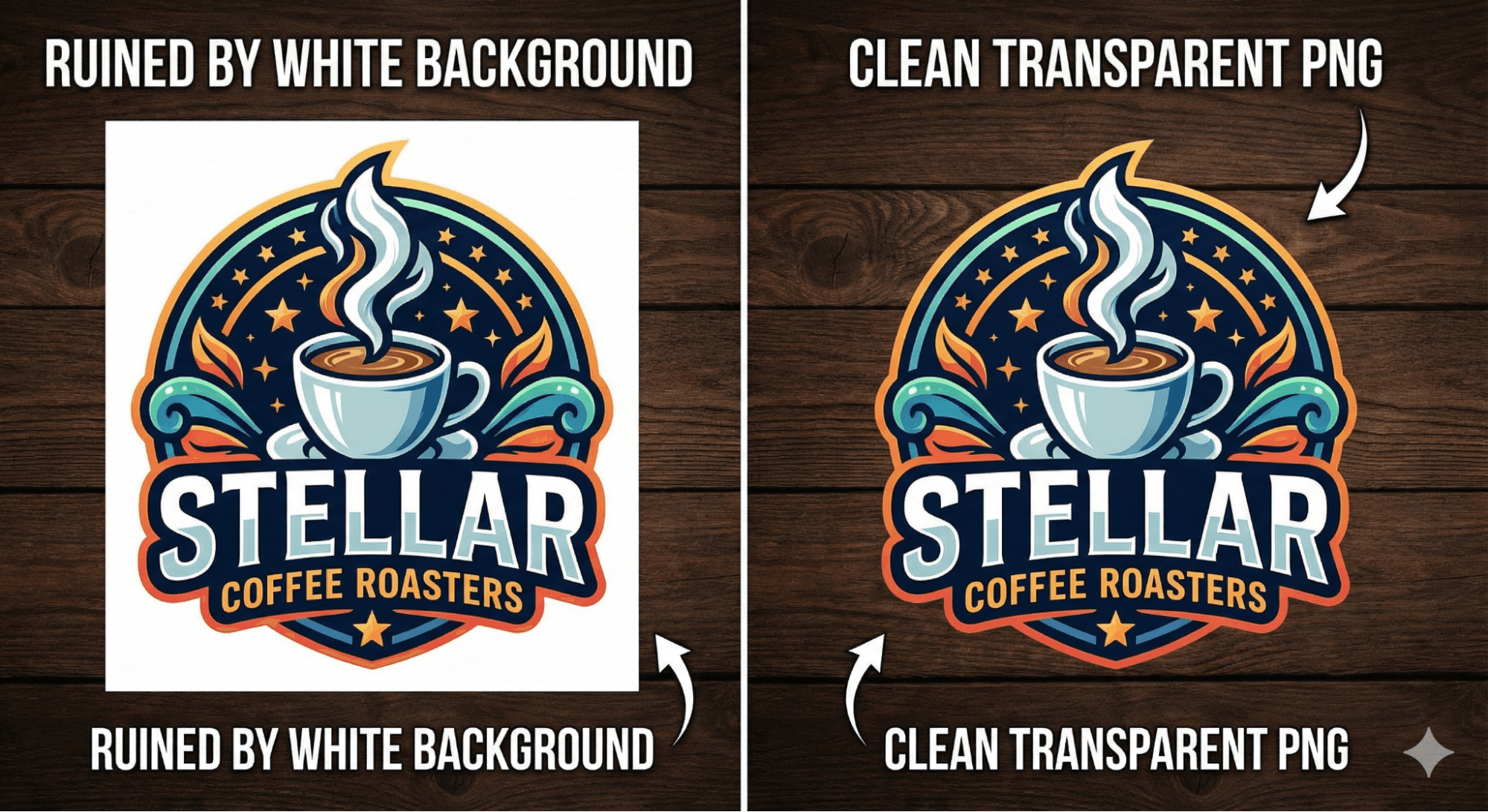
- The "Fake" Transparent Background: You think you have a cutout image, but it blocks your background with a solid square.
- Blurry Edges: You place a graphic over a dark background, and there is a jagged white halo around the object.
- Huge File Sizes: You save a simple image, and suddenly it's 5MB, slowing down your email or website.
- Color Shifts: The image looks vibrant on your desktop but dull when uploaded to the web.
These aren't just technical glitches; they are usually simple misunderstandings of how the PNG format works.
When to Use PNG vs. JPG
One of the most frequent questions we answer is: "Which format should I use?" The answer depends entirely on the content of the image.
We recommend thinking about it this way:
- Use JPG (JPEG) for Photographs:If your image is a complex photo of a landscape, a person, or a city with millions of colors and soft gradients, JPG is the best choice. It compresses the file efficiently. If you save a photo as a PNG, the file size will be massive without adding any visual quality.
- Use PNG for Graphics and Transparency:If your image has sharp lines, text, solid colors, or needs a transparent background (like a logo or an icon), PNG is the standard. It is "lossless," meaning it keeps those sharp edges crisp and doesn't introduce the blurry "artifacts" you often see around text in a JPG.
How Transparent PNGs Actually Work
Transparency is the main reason creators choose PNGs. Unlike other formats that flatten everything into a single layer, PNGs contain an "alpha channel."
Think of the alpha channel like a digital pair of scissors. It tells the computer which pixels should be displayed and which ones should be invisible. When a PNG is processed correctly, you can place a logo over a red background, a blue background, or a photograph, and it will look like it was printed directly onto the surface.
However, transparency requires precision. If the alpha channel isn't clean, you get that "halo" effect we mentioned earlier. This usually happens when someone tries to erase a background using an automated tool that misses semi-transparent pixels, like shadows or hair.

Best Practices by Use Case
Over the years, we have seen how different projects require different approaches to PNGs. Here is what has worked best for us and our users.
1. Web Design and UI
For icons, buttons, and logos on a website, PNGs are essential.
- Tip: Always optimize the file size. A crisp logo shouldn't take up megabytes of space. We recommend ensuring your dimensions match the display size (e.g., don't use a 2000px wide image for a 200px wide icon).
2. Social Media Visuals
When creating overlays for Instagram stories or YouTube thumbnails, PNGs allow you to stack elements.
- Tip: Watch your contrast. If you are placing a dark text PNG over a photo, ensure the photo isn't too dark, or the text will vanish. A high-quality PNG often includes a subtle drop shadow to prevent this.
3. Presentations
Nothing ruins a professional slide deck faster than a logo with a white box around it.
- Tip: Stick to PNGs for all non-photo elements in PowerPoint or Keynote. This allows you to use colored slide backgrounds without clashing with your images.
Avoiding Common Mistakes
Through our work optimizing libraries, we have identified a few recurring errors that are easy to fix.
1. Resizing Upwards
PNGs are raster images, meaning they are made of a fixed number of pixels. If you take a small PNG icon and stretch it to fit a billboard, it will look pixelated and blurry. Always start with a file that is larger than you need and scale it down, never up.
2. Unnecessary Transparency
If an image is a perfect rectangle—like a screenshot or a banner ad—you generally don't need transparency. In these cases, sometimes a JPG or a non-transparent PNG is more stable and smaller in size.
3. Ignoring File Size
Transparent PNGs can get heavy. We often see users upload raw files directly from their design software. We always suggest running PNGs through a compression process (lossless compression) to strip out unnecessary metadata without hurting the image quality.
How We Approached These Problems at Wallpezia
When we started organizing the collections at Wallpezia, we faced these exact issues at scale. We realized that simply having a "lot" of images wasn't helpful if half of them had jagged edges or massive file sizes.
We decided to focus on quality control rather than quantity. Our approach involves manually checking the alpha channels to ensure the transparency is genuine—no hidden white pixels or messy cutouts. We also standardize our resolutions so that when you download an asset, it’s large enough for professional work but optimized enough to not crash your browser.
By categorizing images strictly—separating true transparent objects from standard backgrounds—we aim to save you the time usually spent fixing bad files in Photoshop.

Final Thoughts
Using PNGs correctly is mostly about selecting the right tool for the job. They are the gold standard for digital graphics, logos, and overlays, provided you respect their limitations regarding file size and scaling.
Watch your formats on the next project. If the goal is sharp lines or a see-through background, go with PNG. The key is finding a clean source so you don't have to waste energy scrubbing pixels.
If you’re looking for clean, high-resolution PNG images with transparent backgrounds, you can explore and download professionally curated PNGs directly from Wallpezia. All PNGs are optimized for designers, developers, and creative projects.
If you want to understand usage rights before downloading images, read our guide on Commercial License Explained Simply.