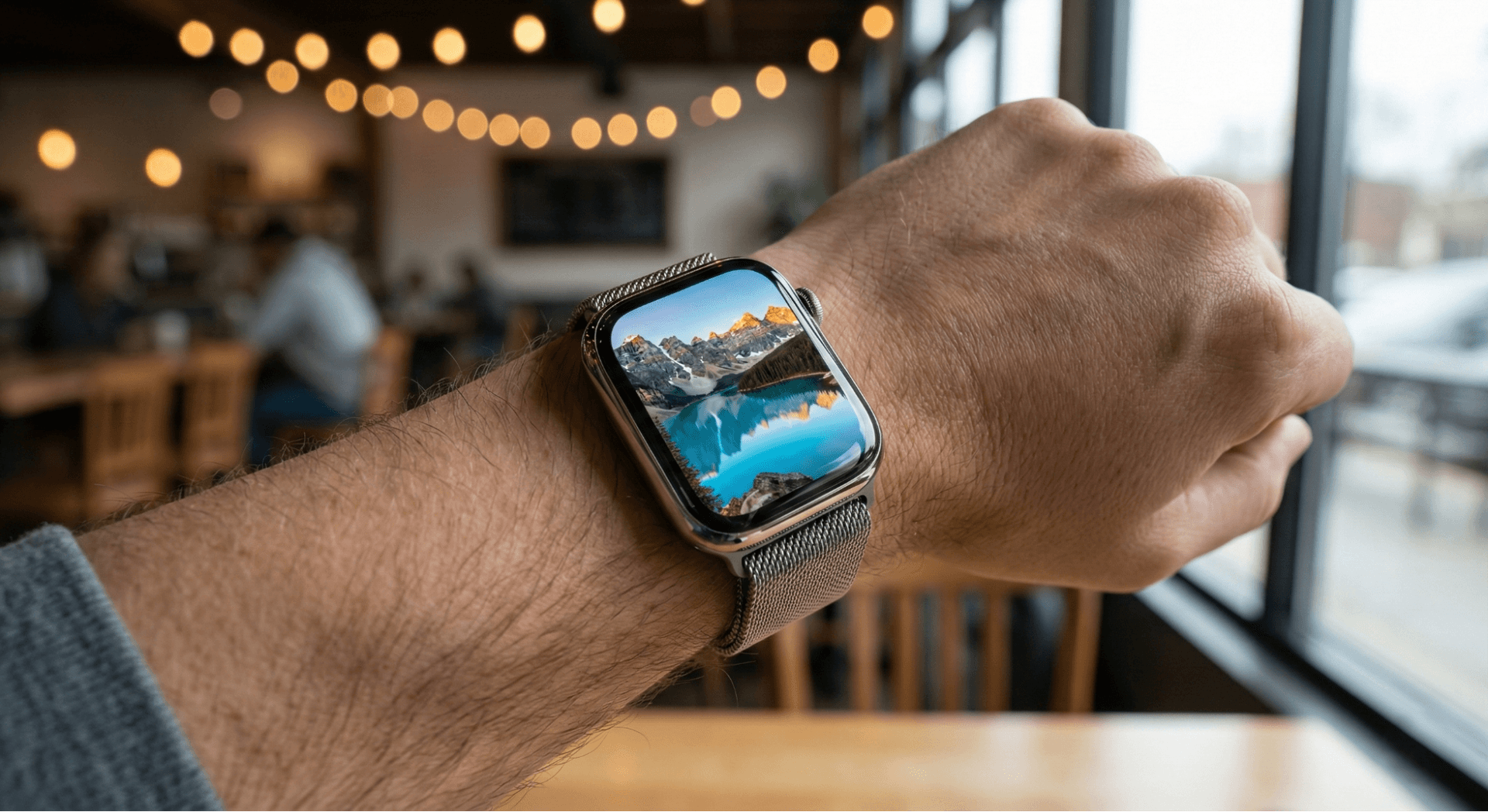
Today, our devices are no longer just tools; they are extensions of our personality. Customizing the Apple Watch with personal photos has become a standard for users seeking a blend of personalization, productivity, and visual enjoyment. Whether you want to glance down at a cherished memory of a loved one, display a high-contrast piece of digital art, or simply match your watch face to your outfit, the ability to set a photo as a wallpaper is essential.
This customization is relevant for everyone:
- Everyday Users: Keep friends, family, or pets just a wrist-raise away.
- Designers & Creatives: Utilize the high-fidelity Retina display to showcase stylish watch faces and color palettes.
- Aesthetic Seekers: Create a cohesive look that blends functional complications with beautiful imagery.
Here is your complete guide to transforming your Apple Watch display.
1. Choosing the Right Photo
Before you start tapping buttons, the first step to a stunning watch face is selecting the right image. Not every photo translates well to a small, wrist-worn screen.
How to Select Optimized Photos:
- Orientation: Vertical (portrait) images work best. Landscape photos will be cropped significantly.
- Subject Placement: Ensure the main subject is centered or positioned so the time display (usually top-right or top-center) doesn’t cover their face.
- Contrast: High-contrast images look best on OLED and Retina displays.
Pros and Cons:
- Pros: Allows for ultimate personalization; high-resolution images look crisp on Series 9 and Ultra models.
- Cons: Busy photos can make reading the time difficult; bright images may drain battery slightly faster than dark ones.
Best for: Casual users, Minimalists, and Photographers.
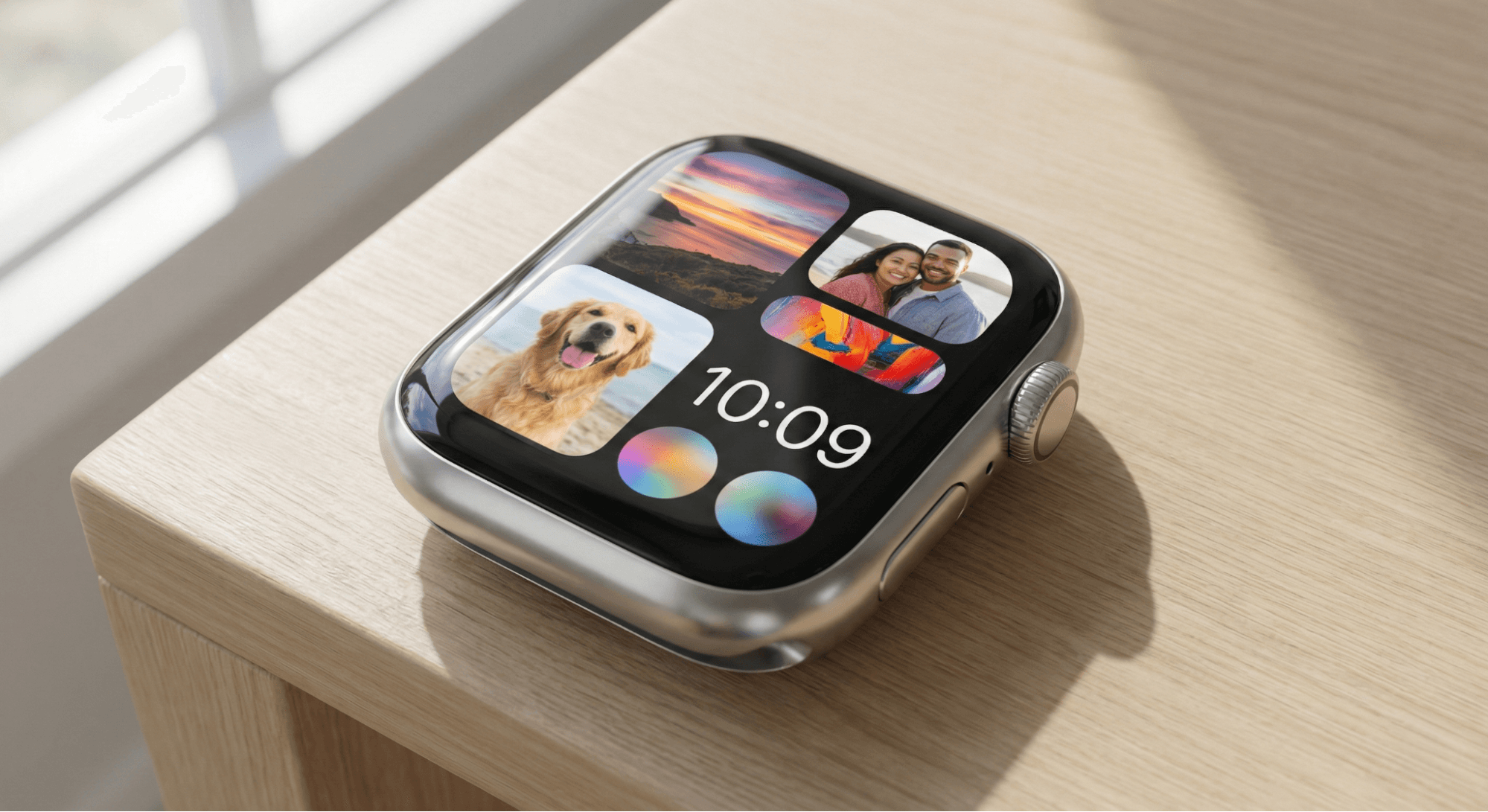
2. Using the Photos App on Apple Watch
The quickest way to update your look is directly from your wrist. This method is perfect for spontaneous changes when your iPhone isn't immediately in hand.
Step-by-Step:
- Press the Digital Crown to open your App View.
- Tap on the Photos app.
- Scroll to find the photo you want to use.
- Tap the share icon (the square with an arrow).
- Scroll down and select Create Watch Face.
- Choose between Photos (static) or Kaleidoscope (artistic pattern).
Pros and Cons:
- Pros: Instant setup; no iPhone required at the moment.
- Cons: Limited editing capabilities; hard to adjust cropping precisely on a small screen.
Who should use this: Users who want a quick change on the go.
3. Using the Apple Watch App on iPhone
For those who want full control over appearance, utilizing the iPhone app is the gold standard. This allows you to tweak complications and positioning with precision. If you enjoy tweaking settings, you might also like learning about Steps to Customize Wallpapers on Popular Operating Systems Without Third-Party Apps.
Step-by-Step:
- Open the Watch app on your iPhone.
- Tap the Face Gallery tab at the bottom.
- Scroll down to the Photos category.
- Select a specific photo or an album (Favorites or a custom album).
- Customize the Time Position (Top or Bottom) and Complications (Date, Weather, Activity Rings).
- Tap Add to sync it to your watch immediately.
Pros and Cons:
- Pros: Full access to zoom, crop, and complication settings; easier to browse large libraries.
- Cons: Requires the iPhone to be nearby and paired.
Best for: Users who want a polished, professional look.
4. Using Live Photos as Wallpaper
Do you want movement on your wrist? Live Photos can animate every time you raise your wrist, adding a dynamic layer to your watch face customization.
How it Works:
The Apple Watch uses the "Key Photo" of a Live Photo to create a short animation.
- Ensure the photo is a Live Photo in your iPhone gallery.
- Follow the steps in the "Using the Apple Watch App" section.
- When you raise your wrist, the image will briefly animate.
Note: If you love motion on your screen, check out our guide on How to Set Dynamic Wallpapers That Change Automatically on Windows or Mac?.
Pros and Cons:
- Pros: deeply engaging visuals; brings memories to life.
- Cons: Consumes slightly more battery; animation only triggers on wake, not constantly looping (to save power).
Ideal for: Parents, pet owners, and users who enjoy interactive tech.
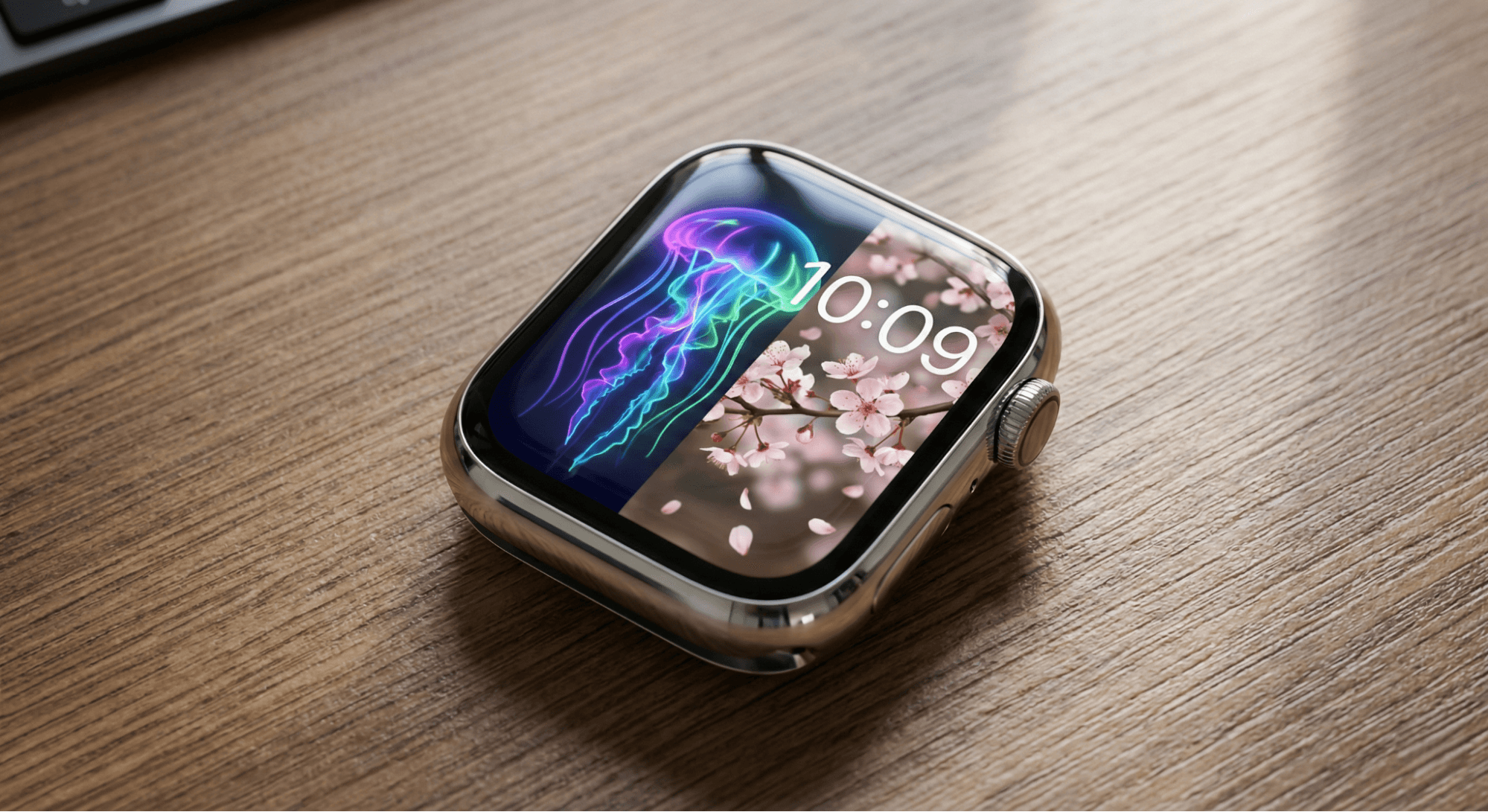
5. Creating Custom Albums for Watch Faces
If you can't decide on just one photo, you don't have to. You can sync a specific album so that your wallpaper changes every time you tap the screen or wake the watch.
Step-by-Step:
- On your iPhone, go to Photos > Albums > + > New Album. Name it "Watch Face."
- Add your selected high-quality images to this album.
- Open the Watch app > Face Gallery >Photos.
- Under "Content," select Album and choose your "Watch Face" album.
Pros and Cons:
- Pros: Keeps your watch feeling fresh; allows you to organize images by mood or style.
- Cons: Requires manual management of the album on the iPhone.
Recommended for: Designers and frequent wallpaper changers.
6. Troubleshooting Common Issues
Sometimes, technology hiccups. Here is how to fix common problems when setting a photo on Apple Watch.
Photos Not Showing:
- Fix: Ensure your watch and iPhone are paired via Bluetooth. Restart both devices if sync lags.
Blurry or Cropped Images:
- Fix: The image resolution might be too low. Use HD or 4K images. Ensure the aspect ratio is close to 4:5 to avoid auto-cropping.
Pros and Cons of Troubleshooting:
- Pros: Resolves syncing errors permanently.
- Cons: Restarting devices takes time.
Usability & Design Tips
To truly maximize the aesthetic potential of your device, consider the hardware. High-quality photos improve user experience significantly on modern Apple Watch displays.
- Resolution Optimization: Always use high-resolution images. With the pixel density of the Apple Watch Series 9 and Ultra models, low-res JPEGs will look pixelated.
- Battery Efficiency: Apple Watches use OLED technology. This means "true black" pixels are turned off. Using wallpapers with deep black backgrounds (dark mode aesthetic) consumes less power than bright, white backgrounds.
- Visual Inspiration: Designers often use their watch face to display color swatches or mini-portfolio pieces. If you need inspiration, browse lists of the Best Free Wallpapers for Designers to find high-quality abstract art.
Conclusion
Customizing your Apple Watch with personal photos is one of the easiest ways to blend technology with personal style. Whether you opt for a sentimental static photo, a dynamic Live Photo, or a rotating album of art, the process enhances both the usability and the joy of using the device.
Remember to choose photos that respect the watch's display size, consider battery life by utilizing darker tones, and have fun with the process. For more inspiration on aesthetic wallpapers and to find the perfect image for your next watch face, explore the Wallpezia collection.
@All assets in this blog are sourced from Wallpezia