Staring at the same static desktop background every day feels monotonous. Your computer creates your digital environment, and just like a physical room, a change of scenery boosts creativity and reduces eye fatigue.
Whether you use a Windows PC for gaming or a MacBook for creative work, setting up dynamic wallpapers keeps your desktop fresh and engaging. This guide teaches you exactly how to automate your background changes using built-in tools and reliable third-party apps.
What Are Dynamic or Auto-Changing Wallpapers?
Before diving into the settings, let's clarify what we mean by "dynamic."
Static wallpapers are single image files (like a JPEG or PNG) that stay the same until you manually change them.
Dynamic or auto-changing wallpapers evolve. They generally fall into two categories:
- Slideshows: A collection of high-quality static images that rotate automatically at set intervals (e.g., every 30 minutes).
- True Dynamic Wallpapers: Special file formats (like HEIC on macOS) that shift appearance based on the time of day—showing a bright landscape at noon and a dark, starry version of the same landscape at night.
Using these setups transforms your screen from a static picture into a living part of your workspace.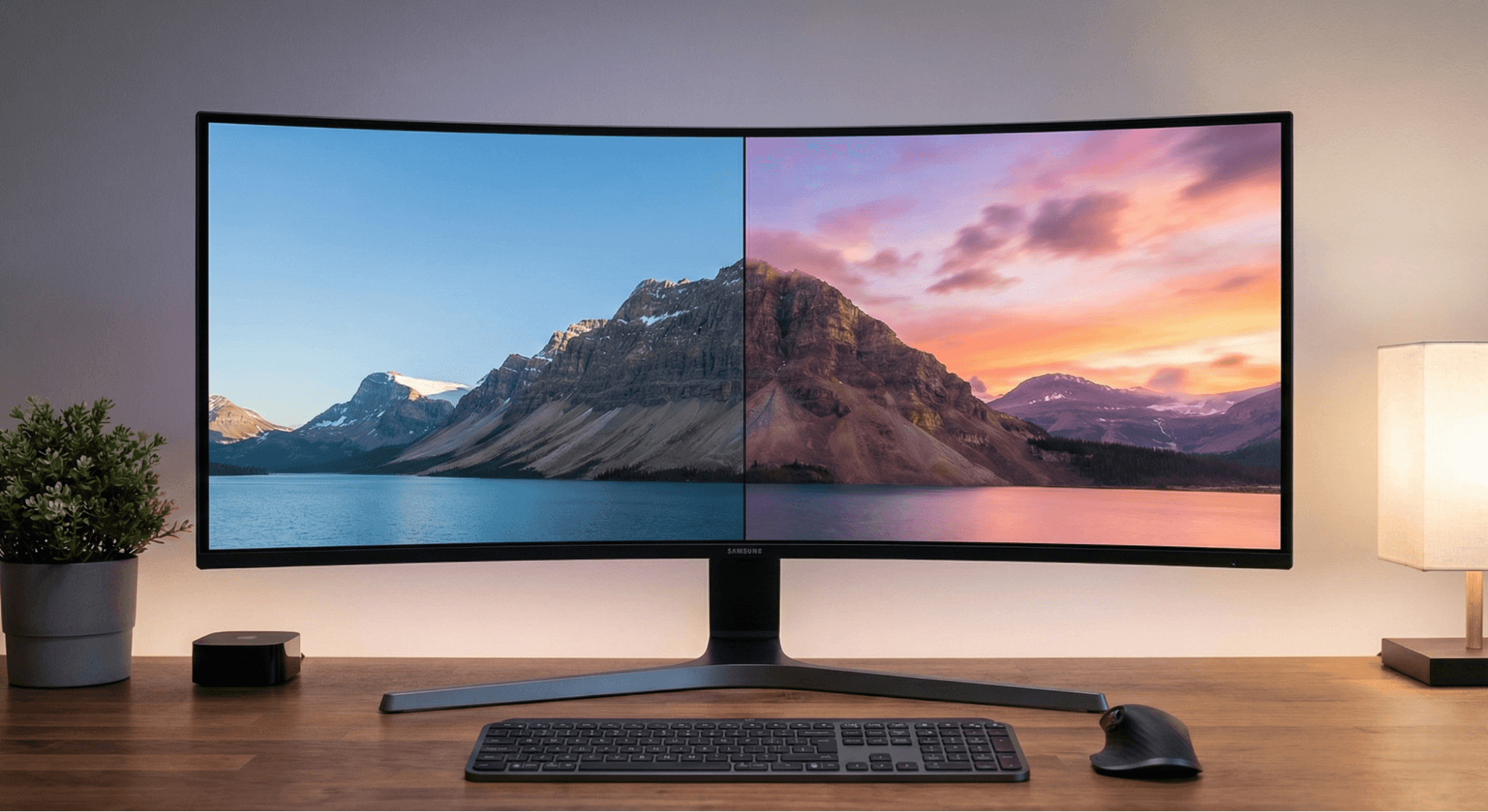
How to Set Dynamic Wallpapers on Windows (Step-by-Step)
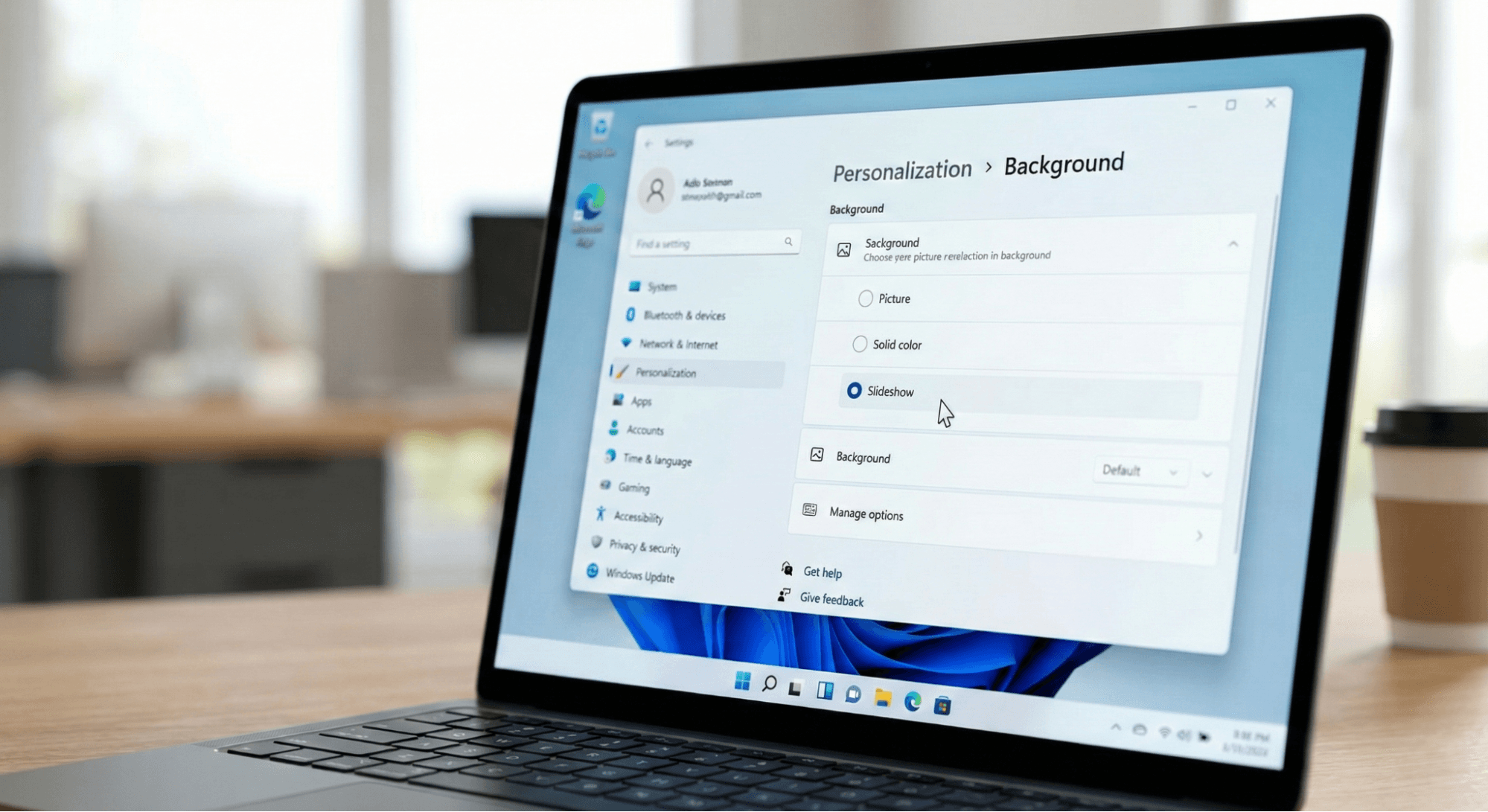
Windows 10 and Windows 11 offer excellent built-in tools to create a wallpaper slideshow without needing extra software.
Method 1: The Native Windows Slideshow
This is the most battery-efficient and secure way to automate your wallpaper.
- Prepare Your Images: Create a new folder on your computer (e.g., "Wallpezia Favorites") and fill it with the high-resolution wallpapers you want to rotate.
- Open Settings: Right-click anywhere on your empty desktop and select Personalize.
- Access Background Settings: Click on Background.
- Enable Slideshow: Look for the drop-down menu labeled "Personalize your background" (Windows 11) or "Background" (Windows 10) and change it from Picture to Slideshow.
- Select Your Folder: Click Browse, navigate to the folder you created in Step 1, and select it.
- Set the Interval: Choose how often the picture changes using the "Change picture every" setting options range from 1 minute to 1 day.
- Shuffle (Optional): Toggle Shuffle the picture order to On if you want a random surprise rather than a specific sequence.
Method 2: Third-Party Applications
For users who want video backgrounds or interactive elements, native settings aren't enough. Apps like Lively Wallpaper (free and open-source) or Wallpaper Engine allow for animated backgrounds that react to music or mouse movement. However, note that these use more system resources than the native slideshow method.
How to Set Dynamic Wallpapers on Mac (Step-by-Step)
macOS is famous for its aesthetic appeal, and Apple provides two distinct ways to make your desktop dynamic.
Method 1: macOS Native Dynamic Desktop
Apple includes specific wallpapers that change lighting based on your local time.
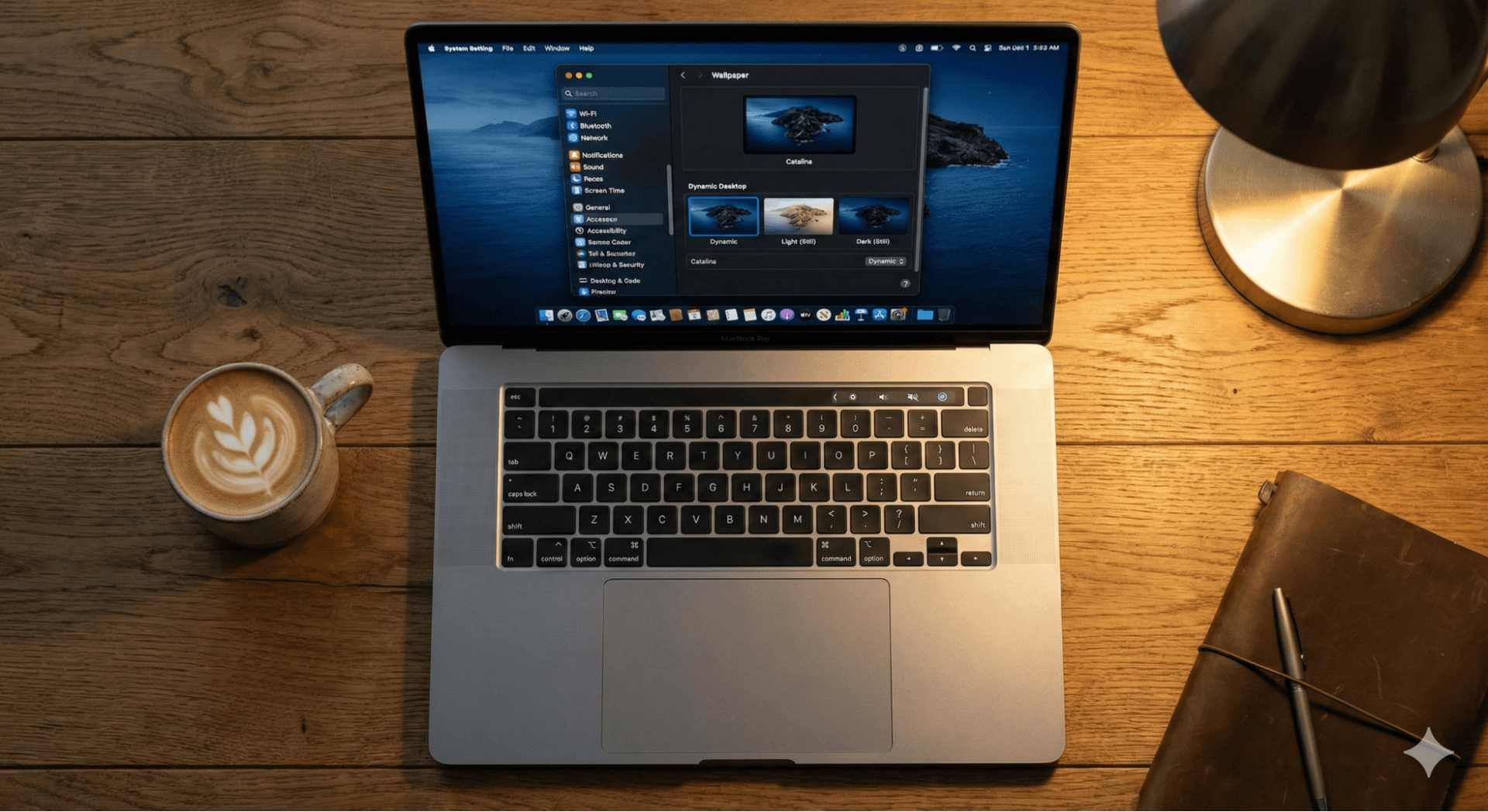
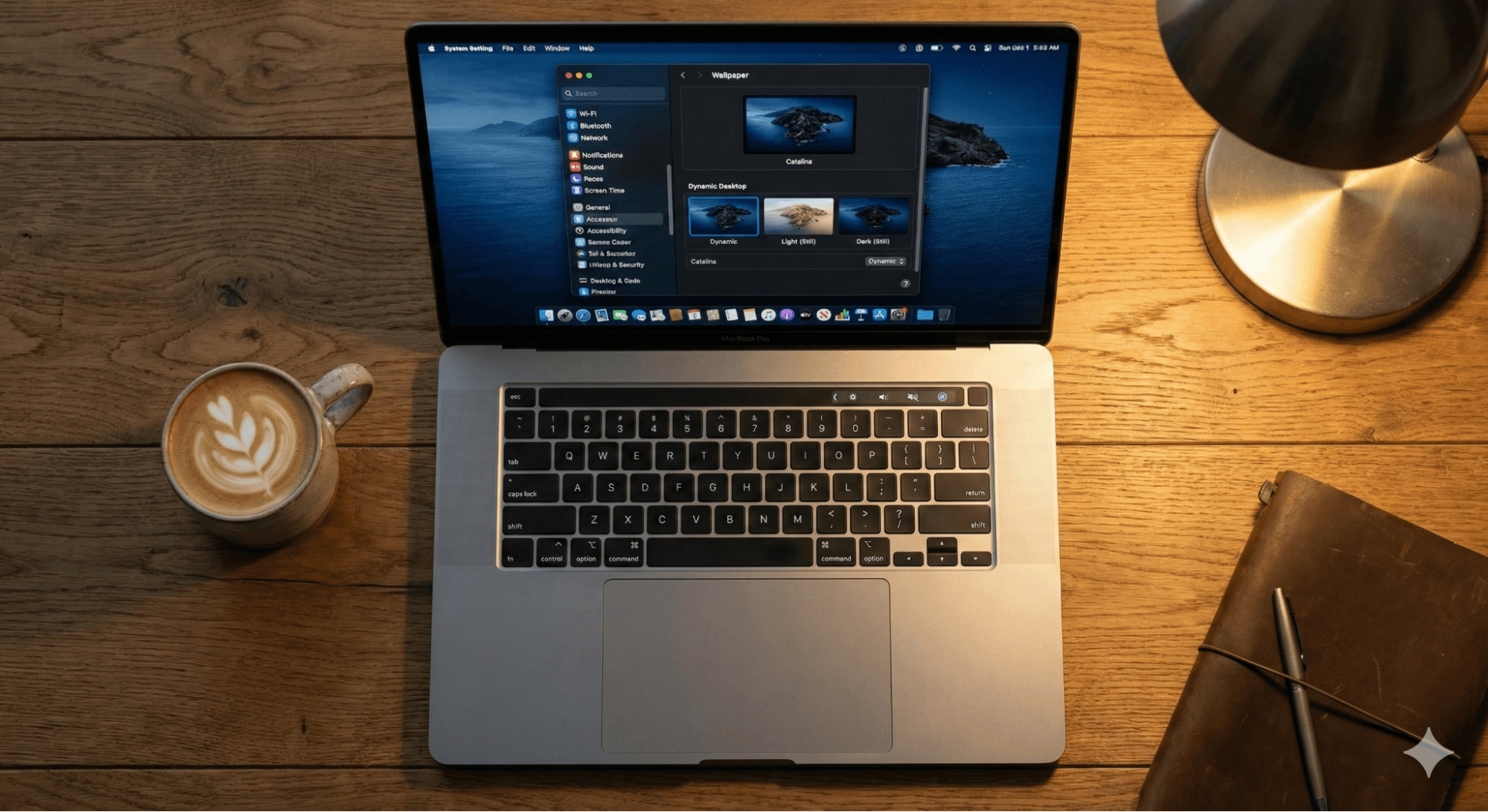
- Open System Settings: Click the Apple logo in the top-left corner and select System Settings (or System Preferences on older versions).
- Go to Wallpaper: Click the Wallpaper tab in the sidebar.
- Choose a Dynamic Wallpaper: Look for the section labeled "Dynamic Desktop."
- Select & Apply: Click on any wallpaper in this section (like the famous "Solar Gradients" or "The Beach").
- Verify Settings: Ensure the dropdown menu on the thumbnail says Dynamic. If set to "Light" or "Dark" explicitly, the image will not change with the time of day.
Method 2: Folder Rotation (Slideshow)
If you prefer using your own collection of images rather than Apple's defaults:
- Create Your Album: Open the Photos app or create a folder in Finder with your desired images.
- Return to Wallpaper Settings: Go back to System Settings > Wallpaper.
- Add Your Folder: Scroll to the bottom and click Add Folder or Add Photo Album to select your custom collection.
- Enable Auto-Rotate: Check the box that says Auto-Rotate (or "Change picture").
- Set Frequency: Select your desired time interval, such as "Every 30 minutes" or "Every hour."
 Using Wallpaper Apps and Platforms
To make the most of these settings, you need high-quality visuals. A slideshow of blurry, low-resolution images ruins the aesthetic.
Finding the Right Source
While Google Images offers variety, the resolution often varies, leading to pixelation on larger monitors. Professional platforms ensure consistency.
- Wallpezia: For a curated experience, Wallpezia provides high-definition wallpapers organized by category. This makes it easy to download a "pack" of themed images (like Cyberpunk, Nature, or Minimalism) to drop directly into your slideshow folder.
- Wallpaper Engine: Best for animated, heavy-duty backgrounds on Windows.
- Unsplash: Good for generic photography, though finding cohesive themes takes more time.
Pro Tip: When downloading from sites like Wallpezia, look for images with the same aspect ratio (usually 16:9) to ensure they fit your screen perfectly without awkward cropping.
Tips for Best Performance & Safety
Running dynamic wallpapers is generally safe, but poor optimization slows down your machine.
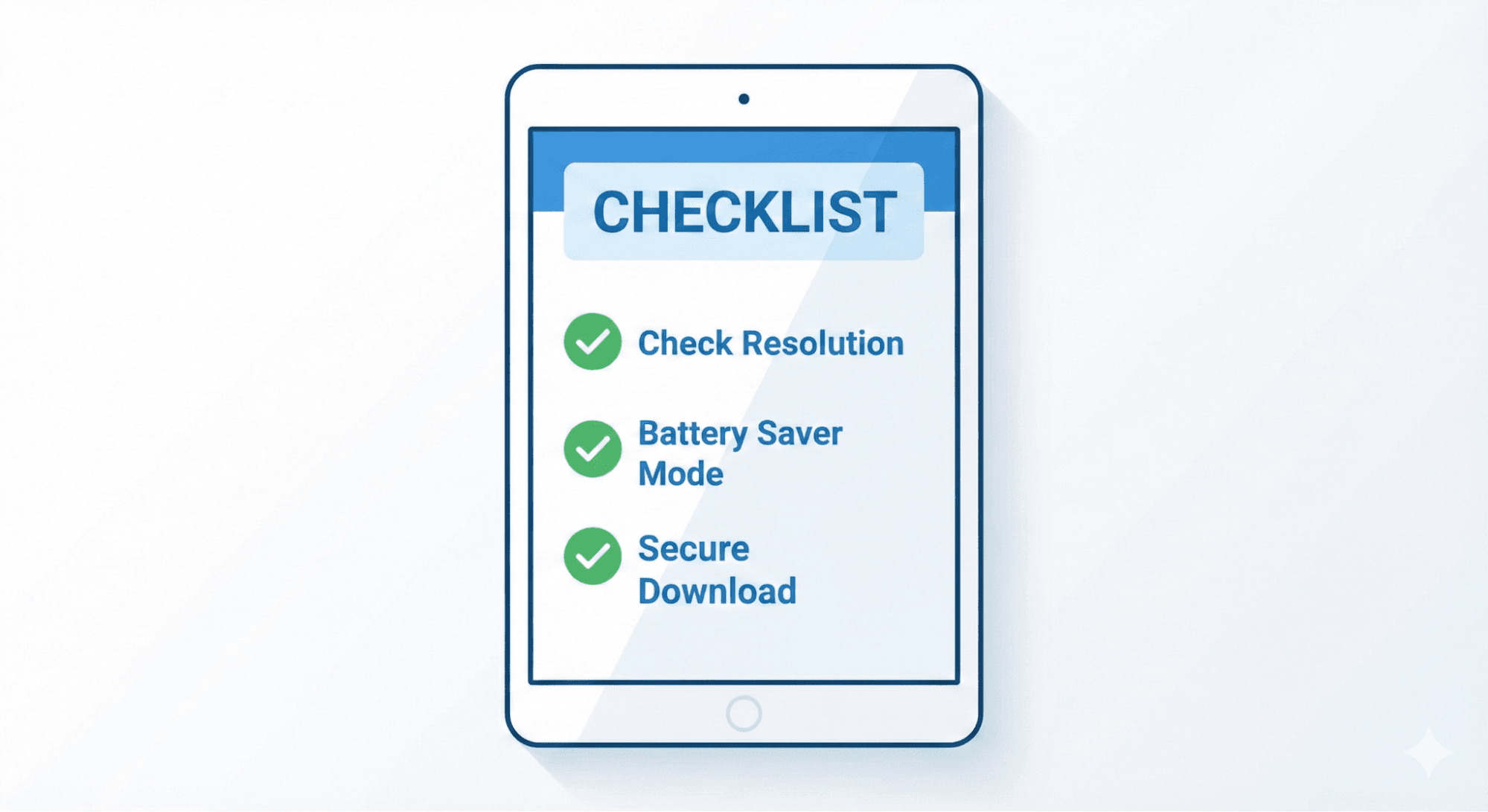
- Battery Management: If you use a laptop, frequent wallpaper changes drain the battery. Set the change interval to 30 minutes or longer to save power. Windows automatically pauses slideshows when battery saver mode activates—keep this feature enabled.
- Resolution Matching: Always download wallpapers that match your screen resolution. Using a 4K image on a 1080p screen wastes memory, while using a 1080p image on a 4K screen looks blurry.
- Safety First: Be cautious when downloading "Screensavers" or executable wallpaper files (.exe) from unknown forums. Static images (JPG, PNG) and trusted platforms like Wallpezia are the safest options for your cybersecurity.
Common Problems & Troubleshooting
Problem: The wallpaper isn't changing.
- Windows Solution: Check your Power Options. If "Pause slideshow to save power" is checked and you are on battery, the background will not update.
- Mac Solution: Ensure you selected "Dynamic" and not just "Light (Still)" in the wallpaper settings.
Problem: Images look stretched or pixelated.
- Solution: In Windows settings, change the "Choose a fit" option to Fill. On Mac, ensure the image resolution is high enough for your Retina display.
Problem: High CPU usage.
- Solution: This usually happens with third-party video wallpaper apps. Switch back to the native Slideshow (Windows) or Dynamic Desktop (Mac) features to reduce the load on your processor.
Conclusion
Setting up dynamic wallpapers on Windows or Mac is a simple yet powerful way to upgrade your digital workspace. Whether you use the native slideshow features for efficiency or explore Apple’s time-shifting landscapes, the key lies in the quality of your images.
Start by curating a folder of high-resolution backgrounds that inspire you. Platforms like Wallpezia make this step effortless by offering ready-to-use collections designed for modern displays.
Take a few minutes today to adjust your settings, and enjoy a desktop that feels new every time you look at it.
Related Topics:
- How to Download High-Resolution Wallpapers Safely from Popular Wallpaper Sites?
- Comparison of Subscription Services for Premium Wallpaper Downloads?
@All images in this blog are sourced from Wallpezia